Define your ideal conditions. Days and spots that match will be highlighted with ⭐ in the forecast.
💨 Wind speed
andknots
💨 Gust
andknots
🌊 Wave height
andm
🌊 Wave period
ands
🌧️ Rain
Excludes hours with precipitation > 0.1 mm
⏱ Good if rules hold for at least
hours (9am–6pm)Leave empty = all hours must match
How it works: Set rules for any conditions you care about. Leave a rule on "any" to ignore it. Days where the forecast matches your rules get a ⭐ on the day header. Spots with a matching good day get ⭐ on their button.
🌊 Zak Wind & Wave Forecast
A personal wind forecasting tool built for kiters, windsurfers, and anyone who lives by the wind.
📍Add any spot in the world — any beach, lake, or bay, with its own forecast, wave data, webcam and station link.
📁Organize into folders — group by region, season, or trip. Switch between your local break and a travel destination in one tap.
⭐My Perfect Day — set your ideal wind and wave conditions, and the app highlights the best upcoming sessions across all your spots at a glance.
🌍Best Spots worldwide — explore 150+ top kite and windsurf destinations with best-month info and direct forecast links.
📷Session Journal — log every session with date, spot, gear, star rating, quick-note tags, photos, and free text. Your personal "Days to Remember" diary.
⚙️My Gear — manage your boards, sails, fins, and wetsuits. Add quick-note tags like "Overpowered" or "Great day!" for fast session logging.
📷Share a day's forecast — tap any day's header bar to capture it as an image and share via WhatsApp, Telegram, or any app. Touch the chart first to include the current hour's wind, wave, and score data.
📍My Location — get an instant forecast for wherever you are right now using your phone's GPS.
🎯Calibrate each model separately — each spot's calibration is tied to the selected wind model. Switch between ICON, GFS, ECMWF etc. and set different direction-specific wind rules for each, conditioned on speed, gusts, or waves.
🔬Choose your wind model — select per-spot between ICON (default), GFS, ECMWF, Météo-France, KNMI, ICON-EU or ICON-D2. Higher resolution local models can give more accurate coastal forecasts. If a model has no data for your spot, it falls back to ICON automatically.
📂Calibrate by folder — apply wave height corrections to an entire region at once.
💾Export your spots — two options: lightweight spots-only, or full backup with sessions, gear, and photos.
🛡️Dual storage safety — data backed up in both localStorage and IndexedDB. If one gets cleared, the other recovers automatically.
📱Works on any device — runs in your browser, no login needed. Your data stays on your device.
☁️Cloud Backup — save all your data to the cloud (Settings → Data). On first save you get a unique recovery key like XKWB-7NP3-RVHD-4T9E. Save this key somewhere safe. To restore on a new phone or after data loss, enter the key and press Restore. Each save overwrites the previous backup. No account or sign-in needed. Multi-device note: you can use the same key on phone and computer, but it's not a sync — each Save overwrites the backup and each Restore replaces all local data. Always Save from the device with the latest data before Restoring on the other.
⚡ SuperModel — AI-Powered Forecast
ZakWind's SuperModel is a unique feature that creates a smarter forecast by learning from real wind measurements at your spot.
It collects live data from a nearby weather station and compares it against up to 5 forecast models. Over time, it learns which models perform best.
The result is a single blended forecast trained specifically for your location. Data collection starts immediately, first training after ~48 hours, full accuracy after ~2 weeks.
Look for the ⚡Super pill in the model selector on spots that have a SuperModel nearby. You can create your own SuperModel in Settings → ⚡ SuperModel.
🎛️ Customize Your Models
Tap the ⚙️ icon next to the model pills to show or hide specific models for each spot. Only see the models you want — your preference is saved per spot.
📲 Install as App
Add to your home screen for quick access — works offline too.
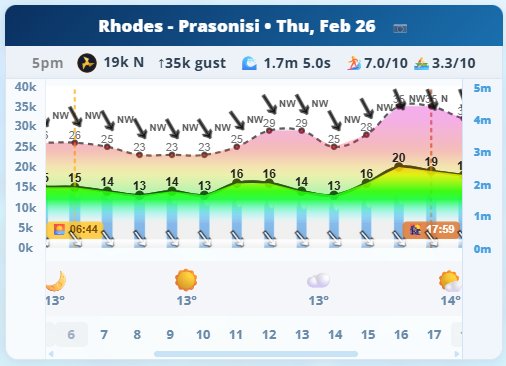
📊 Reading the Chart
🌬️
Info bar (top of chart) — shows the selected hour's data at a glance: wind speed & direction, gust, wave height & period, and the two scores. Tap any hour on the chart to update it.
Colored fill — wind speed — the filled area rises to the wind speed line. Colors go from cyan/green at low speeds, through yellow, to orange/red at high speeds — like a thermometer reading on the y-axis (left scale, knots).
Gust haze (above wind fill) — the transparent color zone above the wind fill shows the gust strength. The wider the gap between the solid fill and the dashed gust line, the gustier the conditions.
🔢
Numbers on the chart — wind speed printed just above the wind line; gust number just above the dashed gust line (smaller). The ↓ arrow below the speed number shows wind direction — it rotates to point where the wind is blowing towards.
Wave bars (blue, bottom) — height = wave height in metres (right axis). Bar width = wave period — fat bars mean long-period groundswell, great for surfing. The white ↓ at the base shows the swell direction.
⛅
Weather icons & temperature — shown below the chart for daytime hours: cloud cover, rain probability, and air temperature.
🏄 🚣
Scores (1–10) — 🏄 Surf score rewards bigger, longer-period swell — ideal for surfing and wave riding. 🚣 Flat water score rewards calm conditions — ideal for SUP, kayaking, flat-water kiting. Shown in the info bar when you tap the chart.
Colors & Meanings
Wind strength colors (gust-based)
~8 k — Light
~14 k — Moderate
~20 k — Fresh
~24 k — Strong
~30 k — Gale
~46 k — Storm
Full interpolated color scale • Wind fill = solid colors • Gust fill = same colors behind • Black segment = past measured wind
Waves
Each wave bar shows: height (right axis, 0–5 m), period (bar width), and direction (white arrow at bar base).
The wider the bar the longer the wave period — long period = clean groundswell, ideal for surfing and foiling. Short period = choppy wind chop.
The white arrow at the base of each bar shows the direction the swell is travelling towards.
Direction Arrows
💨 Wind arrow
A white arrow ↓ sits on the gust line, rotated to show where the wind is blowing towards. The cardinal label (N, NE, SW…) appears just below it — both move with the gust level.
↙ SW
🌊 Wave arrow
A white arrow ↓ sits at the bottom of each wave bar (at the zero line), rotated to show the direction the swell is travelling towards. The arrow is always white regardless of wave height.
↘ SE swell
💡 Same direction = wind swell (onshore). Different directions = cross-swell or distant groundswell — usually cleaner and better quality for wave riding.
Sea Quality Scores (1-10)
Two different scores based on activity type:
🏄 Wave Riding Score
For surfing, wing foiling. Formula: (Height × Period) / 2.5
High waves + long period = excellent. Short period = choppy.
🚣 Flat Water Score
For SUP, kayaking, swimming. Formula: 10 / (1 + (Height/0.3)^1.8) × Period modifier
Small waves + long period = smooth. Chop = bad.
9-10 = Epic
7-9 = Excellent
5-7 = Good
3-5 = Fair
1-3 = Poor
Quick Reference Examples:
Conditions
Wave Score
Flat Score
3m @ 15s
10.0
1.4
2m @ 12s
9.6
3.3
1m @ 8s
3.2
5.3
0.5m @ 10s
2.0
8.6
0.3m @ 12s
1.4
10.0
Spot Indicators
⭐ Star = Wind calibration active
🌊⚙️ Badge = Folder wave calibration active
See Calibration section below for details on all calibration types.
📍 My Location
Tap the 📍 My Location button in the top bar to get a full forecast for your current GPS position — wind, waves, conditions, and 7-day chart.
The button turns green when active. Tap any saved spot to switch back. The forecast only refreshes if you move more than 1 km from the last point, or after 10 minutes — so it won't keep reloading while you're standing on the beach.
💡 Great for checking conditions wherever you are — beach, harbor, or a new spot you're exploring.
🍎 Enable Location on iPhone
Open Settings → Privacy & Security → Location Services
Make sure Location Services is turned ON at the top
Scroll down and tap Safari (if using browser) or find ZakWind (if installed as app)
Set to "While Using the App" or "Ask Next Time"
Return to the app and tap 📍 My Location — allow when prompted
⚠️ If the button still doesn't work, go to Settings → Safari → Location and set to "Ask" or "Allow".
🤖 Enable Location on Android
Swipe down from the top → make sure Location is turned ON in Quick Settings
Open phone Settings → Location → confirm it is enabled
In Chrome: tap the ⋮ menu → Settings → Site Settings → Location — make sure it is set to "Ask first" or "Allow"
If installed as a PWA (home screen app): go to Settings → Apps → ZakWind → Permissions → Location → set to "Allow only while using the app"
Return to the app and tap 📍 My Location — allow when prompted
⚠️ If Chrome previously blocked location for this site, tap the 🔒 lock icon in the address bar → Permissions → reset Location to "Ask".
📷 Share Day Forecast
Tap the blue day header bar (e.g. "Bat Galim · Mon Feb 24 📷") to share that day's forecast as an image.
Tip: First touch the chart at the hour you want to highlight — the current tooltip data (wind, gust, waves, scores) will be included in the shared image.
On mobile, the native share sheet opens so you can send directly to WhatsApp, Telegram, etc. On desktop, the image is downloaded as a PNG file.
🔄 Landscape Mode
Rotate your phone to landscape for a fullscreen chart view. The header, toolbar, and spot panels are hidden to maximize chart area. Pinch to adjust chart height.
Rotate back to portrait to see the full interface again.
⚠️ Android: Make sure Auto-rotate is turned ON in your phone's Quick Settings (swipe down from top → look for the rotation icon). Some Android devices disable rotation by default for PWA apps. You may also need to remove and re-install the app after updating.
ℹ️ App Logo
Tap the app logo/icon at the top of the screen to quickly open this Help page.
📷 Sessions — Days to Remember
Log your wind sessions with date, spot, gear, rating, photos, and notes. Build a personal journal of your best days on the water.
Photos: Attach two images per session — a forecast chart (tap the paste zone or pick from gallery) and a personal photo (camera or gallery). Photos are stored in IndexedDB for durability.
Quick Notes: Tap preset tags like "Overpowered", "Sail too big", or "Great day! 🤙" to quickly describe conditions. You can also type free text below the tags.
Star Rating: Tap 1–5 stars to rate your session.
💡 After sharing a day's chart image, go to Sessions and tap the paste zone — the chart attaches automatically, no clipboard needed.
⚙️ My Gear
Add your boards, sails/kites, fins, and wetsuits. They appear as dropdowns when logging sessions so you can track which gear you used each day.
Quick Notes: Add reusable tags that appear as tappable buttons in the session form. Tap the suggested pills to add them instantly, or type your own custom ones.
All gear and quick notes are backed up to IndexedDB and included in the full export.
💾 Export Options
Two export modes in the Data tab:
📍 Spots & Calibrations — lightweight file with just your spots, folders, calibration rules, and My Day prefs. Great for sharing your setup with others.
📷 Full Backup — everything above plus your gear inventory, session log, and all session photos. Larger file but a complete backup of all your data.
Import handles both formats automatically — just pick any exported JSON file.
🛡️ Data Safety
Your data is stored in two places on your device for extra protection:
localStorage — fast primary store for settings, spots, and session metadata.
IndexedDB — durable backup for everything, plus session photos (which can be hundreds of MB). If Safari or your browser clears localStorage, the app automatically recovers from IndexedDB on next load.
💡 For extra safety, periodically use Full Backup in the Data tab to download a complete JSON file with all your data and photos.
🌐 Forecast Model
Wind and wave data comes from Open-Meteo using the DWD ICON Seamless model — 7km resolution (ICON EU) for the first days, blending into 11km (ICON Global) for days 5–7.
The model updates every 6 hours. The app refreshes spot buttons every 10 minutes and the chart every 30 minutes.
Wave data comes from the Open-Meteo Marine API. All values are model outputs, not measured — use calibration rules to tune them to your experience.
Air Quality Index (AQI)
Based on European Air Quality Index (EAQI). Shows PM2.5, PM10, NO₂, O₃, and SO₂ levels.
Good (0-20)
Fair (21-40)
Moderate (41-60)
Poor (61-80)
Very Poor (81-100)
Extremely Poor (100+)
🎯 Calibration Guide
The app has three independent calibration systems. They work together in a priority chain — spot-level always wins over folder-level.
💨 Spot Wind Calibration
Fine-tune the wind forecast for a specific spot based on its real-world behaviour. Opened with the 🎯 Calibrate button on any selected spot.
How to add a wind rule:
Click sectors on the compass (e.g. N, NE, E)
Choose + Add or − Subtract
Choose Knots or Percent %
Pick a value from the dropdown
Optionally add a wave condition (see below)
Click ➕ Add Rule
Wave condition on wind rules:
Each wind rule can be made conditional on wave height. Check "Only when waves are", choose less/greater than, and set a threshold in meters. The rule will only apply when waves meet that condition.
Example: "Add 10 kts to East wind only when waves < 1.5m" — useful for spots sheltered from swell but exposed to thermal wind.
Indicator: ⭐ star appears on the spot button when it has wind rules. Rules are shown in the list below the compass and highlight on the compass when you hover them.
🌊 Spot Wave Calibration
Adjust the model's wave heights for a specific spot. Found at the bottom of the 🎯 Calibrate modal under "🌊 Wave Height Calibration".
Two independent rules:
Small Waves — waves up to the threshold
Set threshold (e.g. 1m), choose % or cm, set the adjustment value. Example: Up to 1m → −50% (0.8m becomes 0.4m)
Large Waves — waves over the threshold
Same structure, applied when waves exceed threshold. Example: Over 1m → −50cm (2m becomes 1.5m)
Priority:
Spot wave calibration overrides folder wave calibration for that spot. If a spot has its own wave rules, folder rules are ignored for it.
Tip: Click 💾 Save Wave Calibration — a green confirmation appears. The Clear button removes it. Changes apply on the next data refresh.
📁 Folder Wave Calibration
Apply a wave height adjustment to all spots in a folder at once. Useful when an entire region has systematically over- or under-estimated waves. Found in Settings → 🌊 Wave Calibration.
How to set it:
Open Settings → 🌊 Wave Calibration
Find your folder's wave calibration card
Set the Small Waves threshold and adjustment
Set the Large Waves threshold and adjustment
Click Save Calibration
Shortcut:
Click the 🌊⚙️ button on any folder header to jump directly to that folder's wave calibration card in settings.
Indicator: When a folder has active wave calibration, a teal 🌊⚙️ badge appears in the folder header next to the spot count. The calibration card in settings also shows a green border and a summary badge, e.g. ≤1m: −50% / >1m: −0.5m.
⚡ Calibration Priority Chain
When multiple calibrations could apply, the app uses this priority order:
1️⃣
Spot Wind Rules
Applied to wind speed per compass direction. Optional wave condition filter.
2️⃣
Spot Wave Rules
Adjusts wave height for this spot. Blocks folder wave rules if present.
3️⃣
Folder Wave Rules
Applies to all spots in the folder that have no spot-level wave rules.
4️⃣
Raw Model Data
No adjustments — forecast shown exactly as received from Open-Meteo.
🌍 Best Wind & Kite Spots in the World
Check spots then press Add:
🌊 Wave Calibration by Folder
Apply wave height adjustments to all spots in a folder. Spots with individual calibration rules will use their own rules instead.
🗂️ Folder History
Folders you've removed are saved here. Restore an entire folder or pick individual spots to bring back.
💾 Export / Import Data
💡 Transfer your setup to any device! Save to cloud for instant recovery, or export a file to transfer manually.
☁️ Cloud Backup
Save everything to the cloud — spots, sessions, photos, settings. Use your recovery key to restore on any device.
⚠️ Not a sync — each Save overwrites the previous backup. If you use multiple devices, always Save from the one with the latest data before Restoring on the other.
Your Recovery Key — save this!
📥 Restore from Cloud
📤 Export
📍 Spots & Calibrations
Spots, folders, wind/wave calibrations, My Day prefs. Small file, easy to share.
📷 Full Backup (with Sessions)
Everything above + session log, gear, and photos. Larger file.
📥 Import
Load spots from a JSON file. Choose how to handle existing spots:
🔄 Clear App Cache
If the app is behaving strangely or not updating, clearing the cache will force it to reload all files fresh. Your spots, sessions, and registration data will NOT be deleted.
📷 Days to Remember
Log your best sessions — add a photo, pick your gear, and write a few words to remember the day.
➕ New Session
📊
Tap to save today's chart
Saves live data — tap chart in session to see details
☆☆☆☆☆
No sessions yet. Add your first one above! 🏄
⚙️ My Gear
Add your boards, sails/kites, fins, and wetsuits here. They'll appear in the gear dropdowns when logging sessions.
🏄 Boards
🪁 Sails / Kites
🔧 Fins
🩱 Wetsuits
💬 Quick Notes
Tap to add quick tags — they'll show as tappable buttons when logging a session. Add your own below.
⚡ SuperModel
The SuperModel collects real wind measurements from a station near your spot, and compares them against
up to 5 weather models available at that location. Over time, it learns each model's strengths
and weaknesses at your specific spot — which model is best in the morning, which over-predicts afternoon
thermals, which gets the direction wrong. It then produces a single blended forecast that's more accurate than any individual model.
Active SuperModels
Loading...
Create a SuperModel
To create a SuperModel you need: 1. A spot to train for (use one of your saved spots, or enter coordinates) 2. A Windguru real-time station ID near that spot
⚠️ Important: Use the station ID from the Windguru real-time page (windguru.cz/station/XXXX),
not from the forecast page — they have different IDs! The real-time page shows live measurements from an actual weather station.
Go to windguru.cz/station/XXXX (the real-time page, not the forecast page) — the number in the URL is the station ID
My SuperModels
Your SuperModels will appear here after creation.
Timeline
Data collection starts immediately. First training after ~48 hours. Full accuracy after ~2 weeks.
📄 About & Disclaimer
⚠️ Important Disclaimer
This application provides weather forecast data for informational purposes only. We are not responsible for the accuracy, completeness, or reliability of the data presented. Weather conditions can change rapidly and forecasts may be incorrect. Always check multiple sources and use your own judgment before making decisions based on this data. Do not rely solely on this information for activities where safety is a concern.
⚠️ Model Data Only: All wind, gust and wave values are numerical weather model outputs — not real measurements. There are no physical sensors or stations at your spots. The model computes values from atmospheric equations on a grid, typically 1–11 km resolution. Actual conditions at your exact location may differ significantly, especially near coastlines, hills, or sheltered bays. Calibration rules can help tune the model to your local experience.
📧 Contact
For questions, feedback, or support, email us at
info@zakwind.com.
ℹ️ Data Sources
Wind and weather data provided by Open-Meteo.com — model: ICON Global
Wave data provided by Open-Meteo Marine API
Maps provided by Esri & OpenStreetMap
🔒 Privacy Policy
What data we collect and why:
• Forecast data — your spots, folders, calibrations, gear, and session journal are stored locally on your device (localStorage and IndexedDB). This data never leaves your device unless you use Cloud Backup.
• Cloud Backup — if you choose to save a backup, your data is stored on Cloudflare R2 servers, linked to an anonymous recovery key. No email or account is required.
• Send Location service — if you register, we store your chosen display name, a generated user ID and buddy code, buddy connections, and Telegram chat ID (if linked). During an active session, your GPS location is shared with nearby users and stored temporarily (up to 4 hours).
• Country code — Cloudflare automatically provides a 2-letter country code based on your IP address. We store this for service availability purposes.
• Weather data — forecast requests are sent to Open-Meteo (open-meteo.com), a free open-source weather API. We do not control their data practices.
Data retention:
• Local data remains on your device until you clear it.
• Active sessions expire automatically after 4 hours.
• Cloud backups are stored until you overwrite or delete them.
• Server-side user records are stored until you delete your account.
Your rights (GDPR):
• Right to access — all your data is visible to you in the app (Settings → Data, Send Location page).
• Right to delete — use the "Delete My Account & Data" button on the Send Location page to permanently remove all server-side data. Clear your browser data to remove local data.
• Right to portability — use Export (Settings → Data) to download all your data as a JSON file.
• No third-party sharing — we do not sell, share, or transfer your personal data to any third party, except as required by law.
• No tracking or advertising — we do not use analytics, tracking pixels, advertising networks, or any form of behavioral tracking.
• No cookies for tracking — cookies are used solely to store your Cloud Backup recovery key as a fallback. No tracking cookies are used.
Jurisdiction:
This service is operated from Israel. Any disputes are subject to the exclusive jurisdiction of the courts of Tel Aviv, Israel.
This application, including its source code, design, user interface, calibration system, scoring algorithms, visual layout, and all related concepts, are the exclusive intellectual property of zakWind.com and are protected under applicable copyright law.
You may not: copy, reproduce, distribute, modify, reverse-engineer, create derivative works from, sell, or otherwise exploit any part of this application — including its code, design patterns, UX concepts, calibration logic, or scoring systems — without explicit written permission from zakWind.com.
Sometimes the wind station is blocked from a certain direction — a building, hill, or terrain obstacle — so the model's data doesn't reflect the real wind at the spot. Add rules here to compensate:
Tap directions on the compass to select them — tap the ALL button in the center to select or clear all 16 directions at once
Choose Add or Subtract and set a value in knots or %
Optionally restrict the rule by wind speed / gust / wave conditions
Press ➕ Add Rule — multiple rules can stack
Example: "Add 30% to N winds" — if the station is sheltered from the north but the beach isn't.
Add Wind Adjustment:
⚙️ Conditions (Optional):
kts
kts
m
Example: "Add 8 kts to East when wind < 15 kts & waves < 1.5m"
🌊 Wave Height Calibration
Adjust the model's wave height for this spot. Applied on top of any folder calibration.
Small Waves — up to threshold
Up tom → adjust by%
e.g. -50% on 0.8m → 0.4m
Large Waves — over threshold
Overm → adjust bycm
e.g. -50cm on 2m → 1.5m
📲 Install App
Add to Home Screen
Install this app on your phone for quick access! It will work like a native app.
📱 iPhone/iPad Instructions:
Tap the Share button ⎋ (bottom center of Safari)
Scroll down and tap "Add to Home Screen"➕
Tap "Add" in the top right
The app icon will appear on your home screen!
🤖 Android Instructions:
Tap the Menu button ⋮ (top right corner)
Tap "Add to Home screen" or "Install app"
Tap "Add" or "Install"
The app icon will appear on your home screen!
📱 General Instructions:
Look for your browser's menu (usually ⋮ or ⎋)
Find "Add to Home Screen" or "Install App" option
Follow the prompts to install
📌 Benefits: Faster access, works offline (cached), full screen experience, just like a native app!

 —
—